
Download Comodo BackUp – Secure Automatic File Backup Tool
Overview
When it comes to safeguarding personal documents, treasured photos, and critical work files, a reliable backup solution is not a luxury—it’s a necessity. Comodo BackUp positions itself as a lightweight, free utility that lets Windows users protect their data without the steep learning curve of enterprise‑grade software. The promise is simple: after a five‑minute setup you can schedule recurring backups, choose where the copies land (local drive, network share, FTP server, or even a CD/DVD), and retrieve any lost or corrupted file with a single click.
The interface is intentionally uncluttered, making it approachable for beginners while still offering enough depth for power users. You can create full image backups, incremental snapshots, or synchronized copies that mirror changes in real time. While the program does not claim to replace a full‑featured disaster‑recovery suite, it fills the niche of “set‑and‑forget” protection for home PCs, small offices, and freelance creators who need peace of mind without paying for premium features.
Performance is generally respectable; the backup engine runs in the background and consumes modest CPU resources. However, a few users have reported occasional slow‑downs when the software initiates a large transfer during peak usage. The trade‑off is reasonable given that the core product is free, and the occasional pause can often be mitigated by tweaking the schedule.
Overall, Comodo BackUp delivers on its core promise: a quick, secure, and user‑friendly way to keep copies of your important files safe from accidental deletion, hardware failure, or ransomware attacks.
Key Features and Installation Guide
Feature Highlights
- One‑click backup creation with intuitive source‑and‑destination selection.
- Supports local drives, network shares, FTP/SFTP servers, and removable media.
- Incremental and synchronized backup modes to save time and disk space.
- Automatic scheduling (daily, weekly, monthly) with flexible start‑time options.
- Built‑in compression to reduce storage footprint, though gains are modest.
- Restore wizard that lets you retrieve individual files or whole folders instantly.
- Free version includes unlimited backup jobs; premium upgrades add cloud integration.
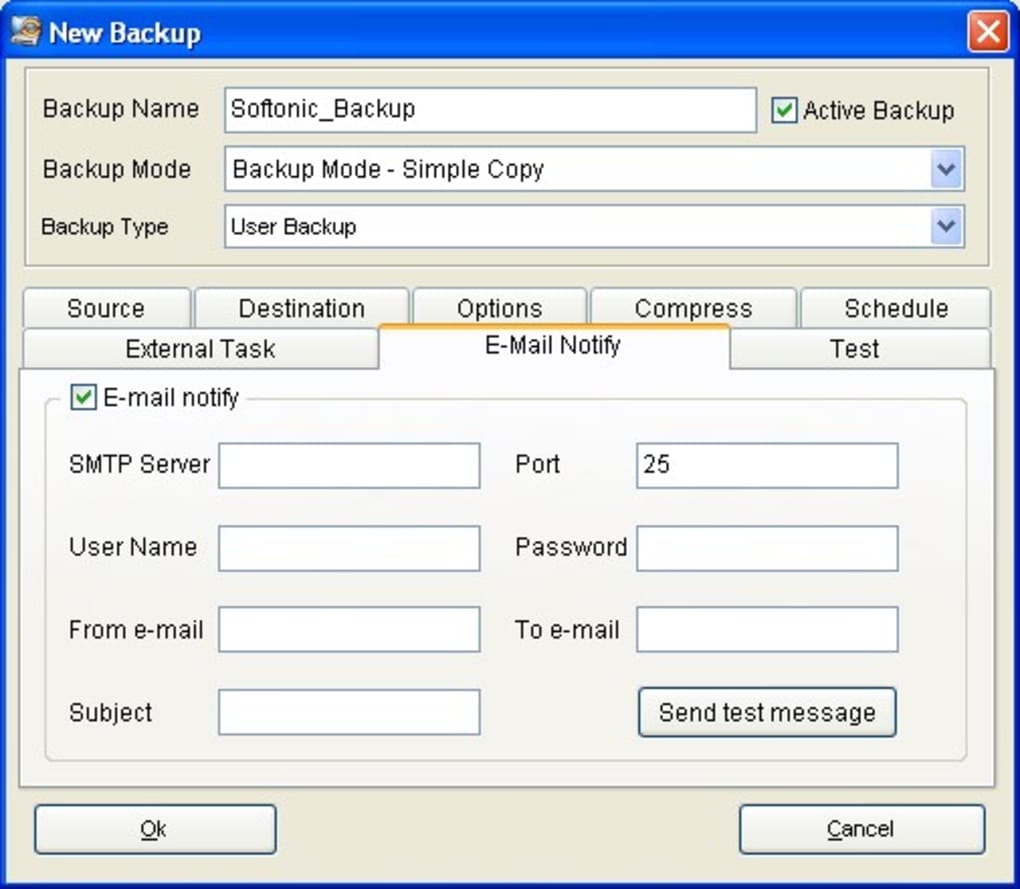
- Basic logging and email notifications for successful or failed backup runs.
Step‑by‑Step Installation
Getting Comodo BackUp up and running is straightforward. First, visit the official Comodo website and click the “Download Free” button. The installer is a compact .exe file (approximately 12 MB) that works on Windows 7, 8, 10, and 11, both 32‑bit and 64‑bit editions.
Run the installer and follow the on‑screen prompts: accept the license agreement, choose an installation folder (the default is fine for most users), and decide whether you want a desktop shortcut. The setup completes in under two minutes, after which the program launches automatically.
How to Configure Your First Backup
1. Click “New Backup Job” and give the job a meaningful name (e.g., “My Documents Backup”).
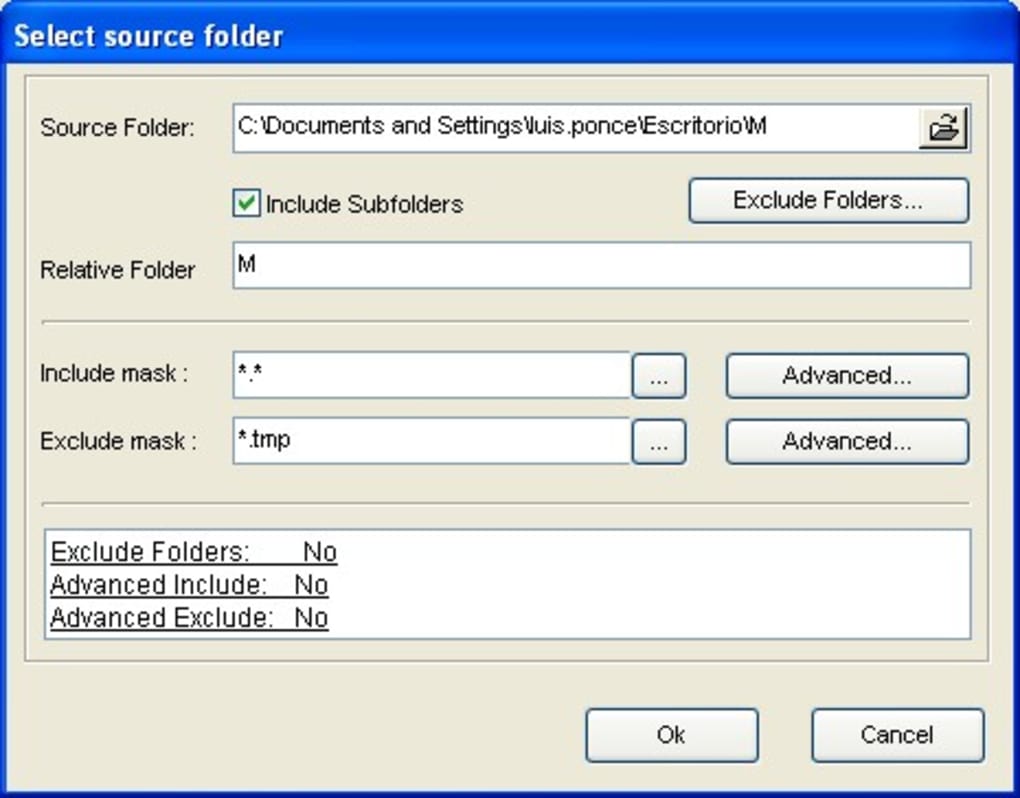
2. Select the source folder(s) you wish to protect.
You can add multiple locations by clicking the “Add Folder” button.
3. Choose a destination. This can be an external USB drive, a mapped network drive, or an FTP server.
If you plan to use removable media, ensure the device is connected before you finish the wizard.
4. Pick a backup type: “Full” for a complete copy, “Incremental” to save only changes after the first full backup, or “Sync” for real‑time mirroring.
5. Set a schedule.
The default is daily at 02:00 AM, but you can adjust the frequency and time to avoid working hours.
6. Review the summary and click “Finish.” The job will now appear in the main window, and you can start it immediately or let the scheduler handle it.
Running and Restoring Backups
To run a backup manually, select the job and click the “Run Now” button. Progress is displayed in a status bar, and any errors are logged for later review. Restoring is equally simple: right‑click the desired backup set, choose “Restore,” and navigate to the file or folder you need. Comodo BackUp will copy the selected items back to their original location or a new path of your choosing.
Pros, Cons, and Frequently Asked Questions
Pros
- Free and easy to use: No hidden fees for basic backup jobs.
- Flexible destinations: Supports local, network, FTP, and removable media.
- Scheduled automation: Set it and forget it with daily, weekly, or monthly runs.
- Incremental & sync options: Saves bandwidth and storage space.
- Lightweight footprint: Minimal impact on system resources when idle.
Cons
- Occasional performance dip when large backups start during active use.
- No native macOS, iOS, or Android client—Windows‑only.
- Compression algorithm provides limited space savings.
- Advanced features such as cloud storage and encryption require a paid upgrade.
- Interface, while clean, feels dated compared with modern SaaS backup tools.
FAQ – Your Backup Questions Answered
Is Comodo BackUp truly free for personal use?
Yes. The free edition allows unlimited backup jobs, unlimited source folders, and supports local, network, and FTP destinations. Premium features such as cloud sync and advanced encryption are sold separately.
Can I back up to a cloud service like Google Drive or OneDrive?
Direct cloud integration is only available in the paid version. However, you can map a cloud storage folder as a network drive and use it as a destination in the free edition.
Does Comodo BackUp encrypt my backups?
The free version does not include built‑in encryption. If encryption is required, you’ll need to purchase the premium license or encrypt the destination drive separately (e.g., using BitLocker).
What happens if a backup fails?
Failed jobs are logged in the “History” tab and an optional email alert can be configured. You can retry the job manually or adjust the schedule to avoid conflicts with heavy system usage.
Is there a limit on the size of files I can back up?
No explicit size limit exists; the only constraints are the available storage on the destination drive and the file system’s maximum file size (e.g., 4 GB for FAT32).
Conclusion & Call to Action
Comodo BackUp strikes a solid balance between simplicity and functionality for Windows users who need a reliable, free backup solution. Its straightforward setup, flexible destination options, and automated scheduling make it an excellent choice for home PCs, small offices, and anyone who prefers a “set‑it‑and‑forget‑it” approach. While it lacks native macOS or mobile support and offers only modest compression, these shortcomings are outweighed by the fact that the core product remains completely free and easy to use.
If you’ve been searching for a hassle‑free way to protect your documents, photos, and project files without diving into complex enterprise suites, give Comodo BackUp a try. Download the installer, configure your first backup job in under five minutes, and enjoy the peace of mind that comes with knowing a recent copy of your data is always just a click away.
Ready to safeguard your files? Download Comodo BackUp now and start protecting your data today.







